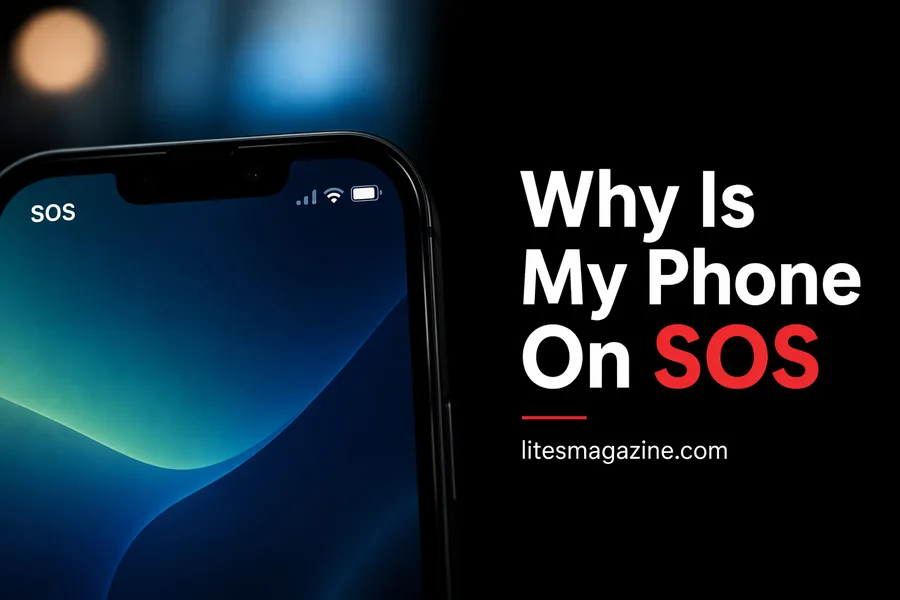
You unlock your phone and instead of signal bars, you see “SOS” or “SOS Only.” No calls. No data. It feels like your phone just stopped working. If you’re searching “why is my phone on SOS”, the good news is this is rarely a serious problem—and in most cases, you can fix it yourself.
This detailed guide explains what SOS really means, why it happens, how to fix it step by step & how to prevent it from coming back.
Why Is My Phone On SOS?
Your phone shows SOS or SOS Only when it cannot connect to your carrier’s network but can still connect to any available emergency network. This allows emergency calls only. Regular calls, texts, and mobile data will not work until your connection is restored.
???? Quick Fix Checklist (Works For Most People)
Before going deeper, try these:
- Toggle Airplane mode ON → OFF
- Restart your phone
- Move to a strong signal area
- Remove and reinsert your SIM card
???? These fixes solve most “phone stuck on SOS” issues in under 2 minutes.
Quick Facts Table
| Status | Meaning | Calls | Data | Likely Cause | Fix Speed |
| SOS Only | No carrier network | Emergency only | No | Signal/SIM issue | Fast |
| No Service | No network at all | No | No | Coverage/outage | Medium |
| Searching | Trying to connect | Unstable | Unstable | Weak signal | Fast |
| Airplane Mode | All radios off | No | No | User setting | Instant |
| SIM Not Detected | SIM error | No | No | SIM damage/loose | Medium |
What Does SOS Mean On The Phone (Real Explanation)
SOS mode is not an error. It’s a built-in safety system.
When your phone loses your carrier signal:
- It searches for any available network
- If it finds one that allows emergency access, it connects to it
- Your phone then displays SOS
That’s why you can still call emergency numbers even without your own network.
Read Also: What the Fuck Is Up Dennys? Internet Joke 2026
Why Does My Phone Say SOS Only? (All Causes Explained)
Let’s break down every real cause in detail so you can pinpoint your issue.
1. Weak Signal or Dead Zone
This is the most common reason behind “why is my phone on SOS.”
Signal drops when:
- You are indoors with thick walls
- You’re in elevators or underground areas
- You’re far from cell towers
Even in cities, certain buildings block signals.
???? What’s happening:
Your phone cannot reach your carrier tower, so it switches to emergency-only mode.
???? Fix:
Move outside or closer to a window. Even a few meters can help.
2. Network Outage or Tower Issue
Sometimes your phone is fine. The network is not.
Carriers can have:
- Scheduled maintenance
- Unexpected outages
- Tower congestion
???? Signs:
- Others on the same network also have no signal
- Signal disappears suddenly in a normally good area
???? Fix:
Wait 5–15 minutes. Restart your phone. If it continues, contact your carrier.
3. SIM Card Problems
Your SIM is your phone’s identity on the network.
If something is wrong with it:
- Your phone cannot authenticate
- It fails to connect to the carrier
- SOS mode appears
???? Common SIM issues:
- Slightly loose in tray
- Dust or dirt on contacts
- Physical damage
- Old SIM card
???? Fix:
- Turn off your phone
- Remove SIM tray
- Clean gently with dry cloth
- Reinsert properly
If the issue remains, try another SIM.
4. Airplane Mode Accidentally Enabled
This is one of the simplest causes.
Airplane mode:
- Turns off cellular connection
- Stops your phone from connecting to towers
???? Fix:
Turn it OFF and wait a few seconds.
5. Software Glitch or Bug
Phones sometimes fail to reconnect after:
- Software updates
- Network switching
- Long uptime without restart
???? Symptoms:
- Signal disappears randomly
- Restart temporarily fixes it
???? Fix:
- Restart your phone
- Update to latest software version
6. Network Settings Corruption
Your phone stores network configuration.
If it gets corrupted:
- Your phone may fail to register on the network
- You may see SOS or no service
???? Fix:
Reset network settings (this clears Wi-Fi and mobile configs).
7. Carrier Account Issues
Your network provider may limit access if:
- Your plan expired
- Payment failed
- SIM was deactivated
???? Fix:
Check your account or call your carrier.
8. Hardware Damage (Less Common)
If your phone has:
- A damaged antenna
- Internal board issues
It may fail to detect signals.
???? Signs:
- SOS all the time
- Other phones work fine in same location
???? Fix:
Visit a repair technician.
Read Also: Can You Change Your Age on Instagram Without ID? What Actually Works
How To Fix Step-by-Step On Your Phone (Detailed Method)
Follow this exact order for best results.
Step 1: Change Location
Go to:
- Open space
- Balcony
- Near window
???? This checks if the problem is signal-related.
Step 2: Toggle Airplane Mode
- Turn ON for 10 seconds
- Turn OFF
???? This forces your phone to reconnect to the network.
Step 3: Restart Your Phone
This clears temporary system errors.
Step 4: Check SIM Card
- Remove SIM
- Inspect for dust or damage
- Reinsert firmly
Step 5: Check for Software Updates
Outdated software can break network compatibility.
Step 6: Reset Network Settings
This is a powerful fix.
- Removes saved networks
- Refreshes carrier connection
Step 7: Try Another SIM
Insert a different SIM:
- If it works → your SIM is faulty
- If not → device issue
Step 8: Contact Your Carrier
Ask them to:
- Check outages
- Refresh your network profile
- Replace SIM if needed
Why Is My iPhone On SOS?
On iPhones, SOS mode works the same way but can appear more often after updates.
Common triggers:
- iOS bugs
- Carrier settings outdated
- eSIM activation issues
???? Fix for iPhone:
- Update iOS
- Reset network settings
- Check carrier settings update

Why Is My Android Phone Stuck On SOS Only?
Android phones may show:
- “Emergency Calls Only”
- “SOS Only”
Common causes:
- APN misconfiguration
- Dual SIM conflicts
- Network mode mismatch
???? Fix for Android:
- Set network mode to automatic
- Reset APN settings
- Restart device
SOS Only vs No Service (Clear Difference)
| Status | What It Means |
| SOS Only | Emergency network available |
| No Service | No network at all |
| Searching | Looking for signal |
???? Important:
SOS means your phone still has limited access. It’s not completely disconnected.
Why Does My Phone Randomly Go Into SOS?
This usually happens due to signal instability.
Common triggers:
- Moving in vehicles
- Entering buildings
- Switching between towers
???? It’s normal if it happens briefly.
How To Prevent SOS Mode In The Future
You can reduce how often it happens.
Keep Software Updated
Updates fix bugs and improve connectivity.
Use Strong Network Providers
Some carriers perform better in specific regions.
Avoid Known Dead Zones
Basements and elevators often block signals.
Enable Wi-Fi Calling
This helps when the mobile signal is weak.
Maintain Your SIM Card
Replace old or damaged SIMs.
When SOS Is A Serious Problem
Take it seriously if:
- SOS stays for hours
- It happens daily
- Other phones have signal but yours doesn’t
???? This often points to:
- SIM failure
- Carrier restriction
- Hardware issue
Final Thoughts
Seeing SOS on your screen can feel stressful, especially when you need your phone. But now you clearly understand why your phone is on SOS, what causes it, and how to fix it.
In most cases, it’s a temporary network issue, not a serious problem. Start with the quick fixes. They work more often than you think.
If the issue keeps coming back, check your SIM or talk to your carrier. That’s usually where the real problem lies.
Your phone isn’t failing. It’s doing exactly what it’s designed to do—keeping emergency access available when your main network drops.
FAQs:
Why is my phone on SOS only today?
Your phone likely lost connection due to a network outage or weak signal in your area.
Can I text in SOS mode?
No. You can only make emergency calls. Texts and the internet won’t work.
How long does SOS mode last?
It lasts until your phone reconnects to your carrier network.
Does SOS mean my SIM is broken?
Not always. It could be signal loss, but a damaged SIM is one possible cause.
Why does my phone keep switching to SOS?
This usually happens in areas with unstable or weak signals.
Read More Articles: Why Is Uhoebeans Software Update So Slow? 9 Hidden Reasons